Configuration guidance for local and hosted LLM endpoints, prompt writing, and request template examples.
GENA has nine features:
% in the compose editor are treated as instructions to the LLM. Press the GENA button and each % line is replaced with LLM-generated content. See the Compose Instructions section below.GENA does not hard-code a single AI provider. Instead, it lets you define:
This means the same extension can work with OpenAI-compatible APIs, local vLLM, Ollama, OpenAI itself, Anthropic, DeepSeek, and many other services.
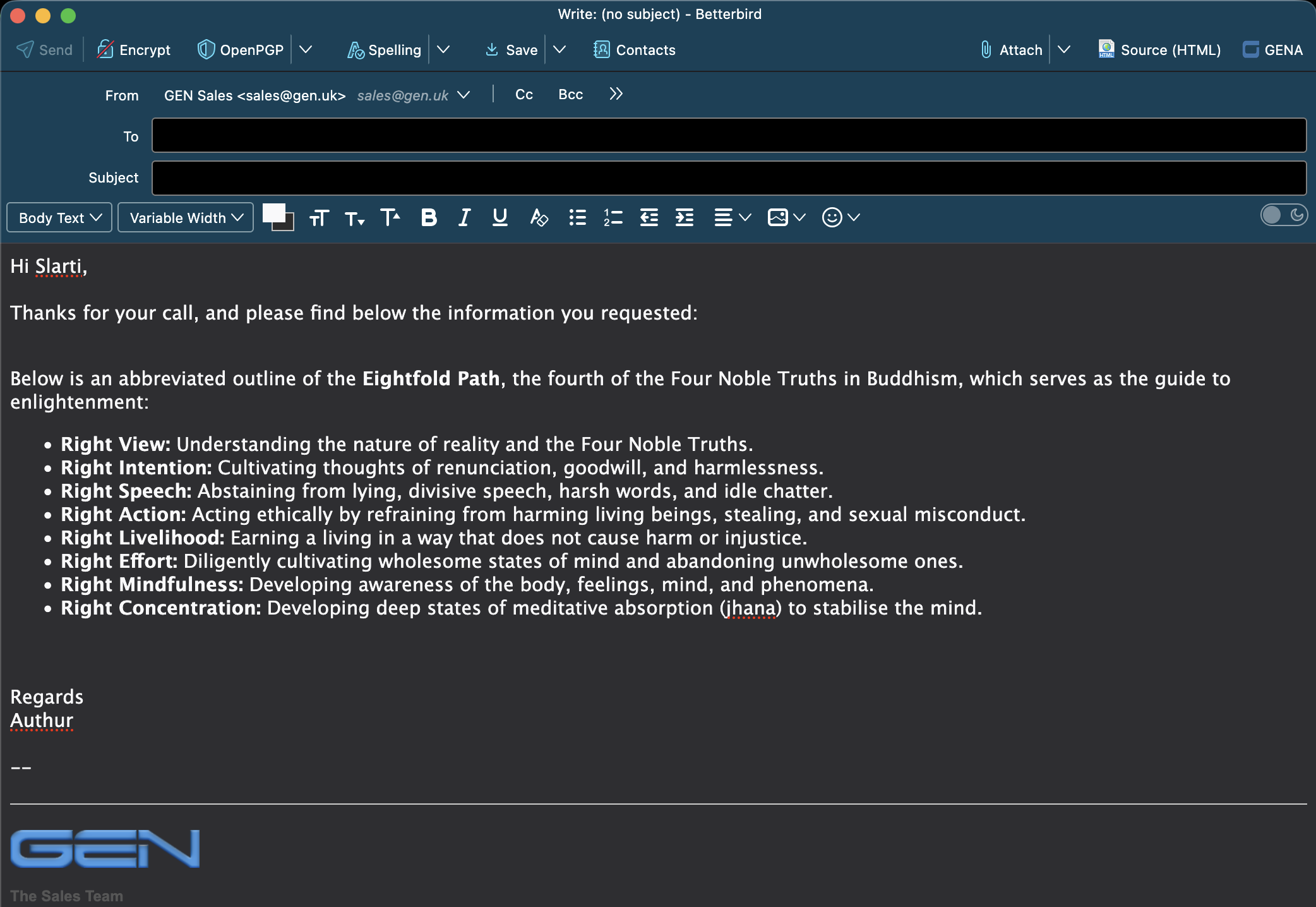
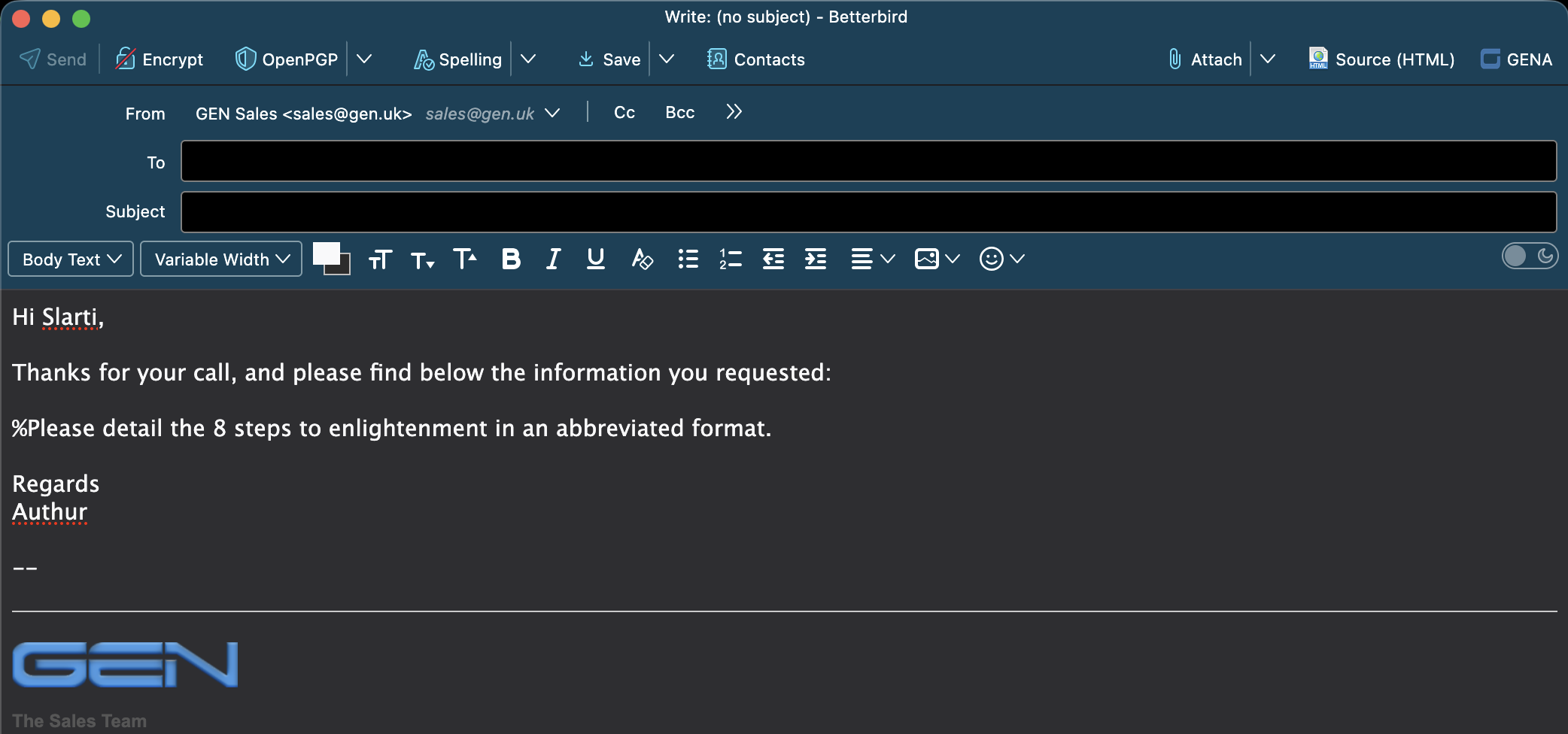
Type % followed by an instruction in the compose editor. GENA replaces it with LLM-generated content.
Before
After
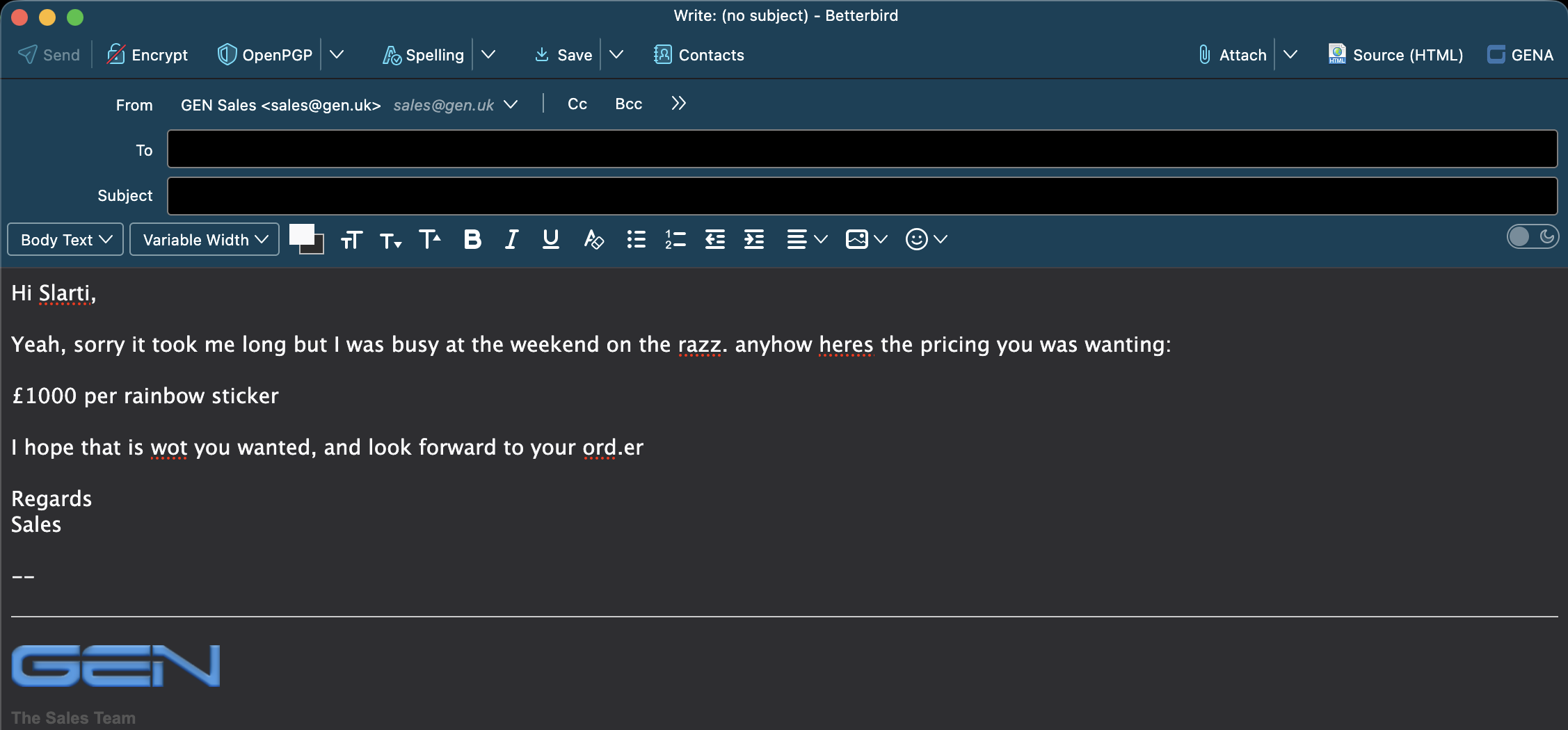
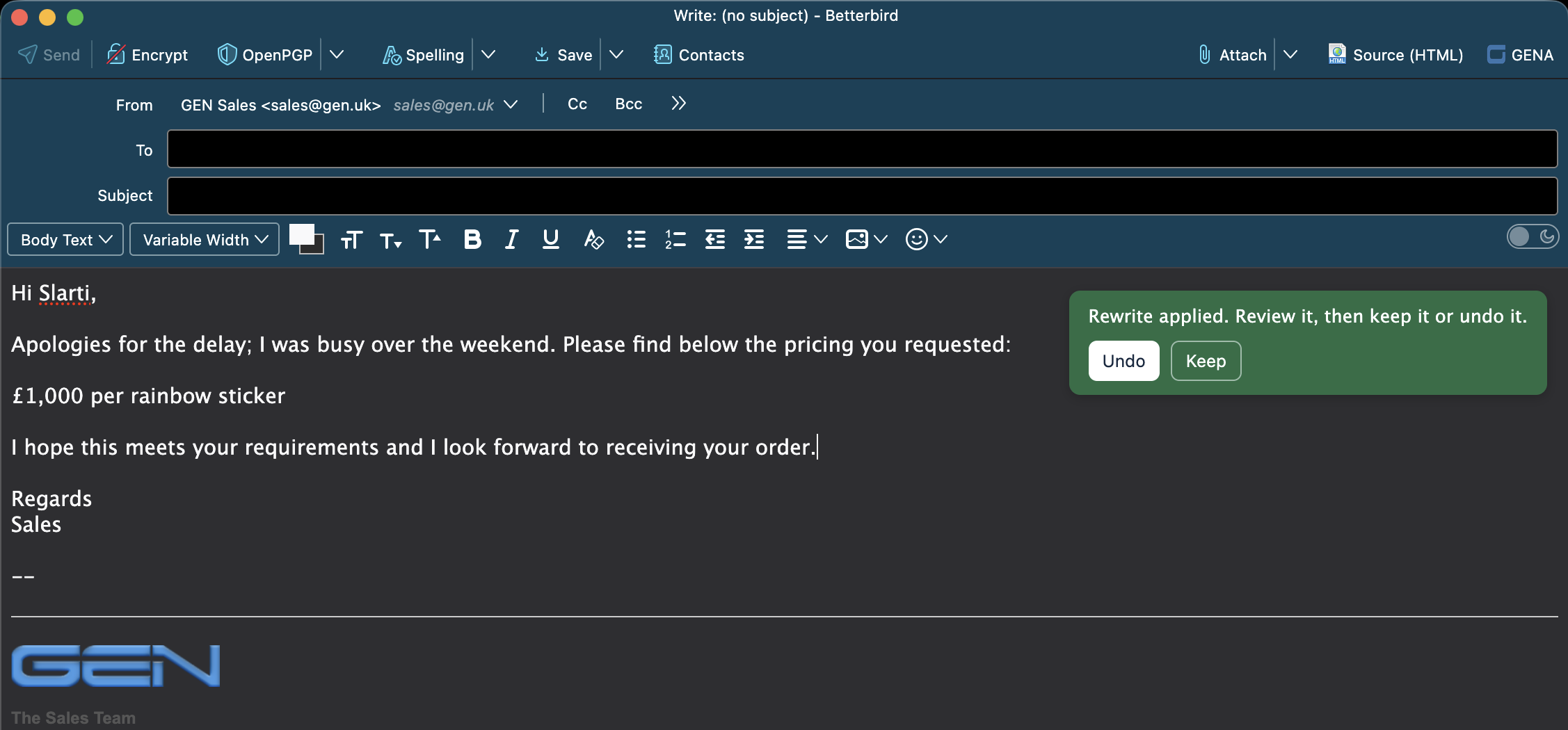
Rewrites poorly written email text into clear, professional prose while preserving the intent.
Before
After
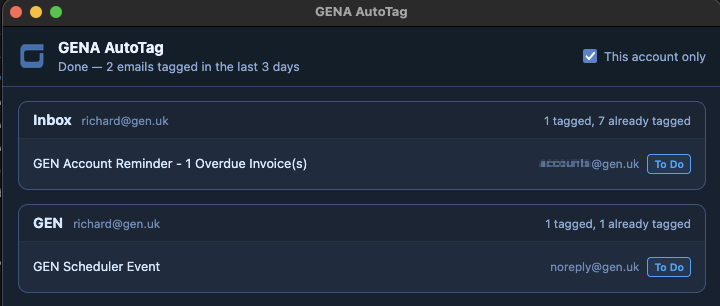
Scans recent emails and applies Thunderbird tags based on rules you define.
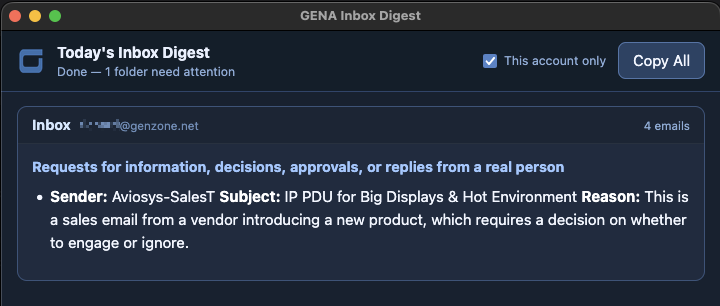
Produces a digest of emails that need your attention, filtering out routine noise.
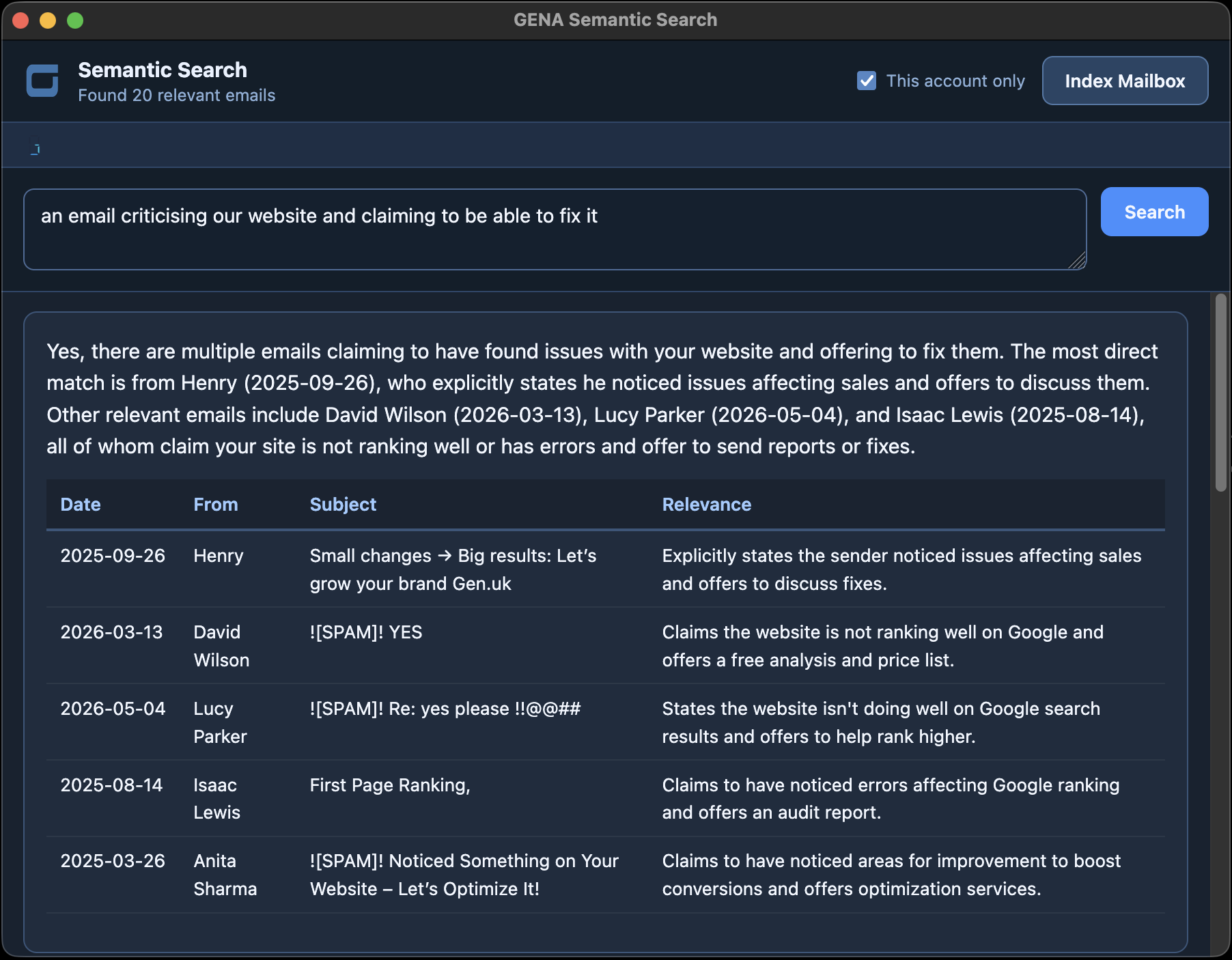
Ask natural-language questions about your entire mailbox and get confident answers with evidence.
Before installing GENA, you need three things running and accessible from the machine where Thunderbird or Betterbird is installed:
1. A Large Language Model (LLM)
GENA needs access to an LLM via an HTTP API. This can be:
The LLM handles email summarisation, compose rewriting, inbox digest, AutoTag decisions, and analysing semantic search results.
Ollama is the recommended option for local use — it is free, easy to install, and exposes both a native API and an OpenAI-compatible endpoint out of the box.
2. An Embedding Model
Required only if you want to use Semantic Search. An embedding model converts email text into numerical vectors that capture meaning.
Recommended models (both run well on modest hardware):
snowflake-arctic-embed2 — high quality, 1024-dimension vectorsnomic-embed-text — lighter weight, 768-dimension vectorsOllama is ideal for local use — it serves both your LLM and your embedding model from the same installation. Pull the model once and it is ready to use.
If you prefer a hosted or proxied embedding service, GENA also supports any OpenAI-compatible embedding endpoint (such as LiteLLM), including those requiring a Bearer API key.
3. Qdrant Vector Database
Required only if you want to use Semantic Search. Qdrant stores the embedding vectors and performs fast similarity searches across your mailbox.
Qdrant is free and open-source. A Docker container is the easiest way to run it. Default port is 6333.
Ollama is the recommended way to run both your LLM and embedding model locally. It manages model downloads, serves an HTTP API, and runs on macOS, Linux, and Windows.
Option A: Local Installation
Install Ollama directly on the machine running Thunderbird/Betterbird.
ollama pull llama3.1:8b
ollama pull snowflake-arctic-embed2
ollama list
By default, Ollama only listens on 127.0.0.1:11434. If Thunderbird runs on a different machine to Ollama, you need to bind to all interfaces:
macOS / Linux:
OLLAMA_HOST=0.0.0.0 ollama serve
Or set OLLAMA_HOST=0.0.0.0 as a persistent environment variable before starting the Ollama service.
systemd (Linux):
sudo systemctl edit ollama
Add under [Service]:
[Service] Environment="OLLAMA_HOST=0.0.0.0"
Then reload and restart:
sudo systemctl daemon-reload sudo systemctl restart ollama
Option B: Docker (remote or headless server)
Running Ollama in Docker is ideal for a dedicated server or NAS. The container exposes the API on port 11434.
CPU only:
docker run -d \ --name ollama \ -p 11434:11434 \ -v ollama_data:/root/.ollama \ ollama/ollama
With NVIDIA GPU:
docker run -d \ --name ollama \ --gpus all \ -p 11434:11434 \ -v ollama_data:/root/.ollama \ ollama/ollama
After the container is running, pull your models into it:
docker exec ollama ollama pull llama3.1:8b docker exec ollama ollama pull snowflake-arctic-embed2
For full Docker documentation including AMD GPU support, see the Ollama Docker guide.
Testing Ollama with curl
Before configuring GENA, confirm that Ollama is responding. Replace localhost with your server's hostname or IP if running remotely.
curl http://localhost:11434/api/generate \
-d '{
"model": "llama3.1:8b",
"prompt": "Say hello in one sentence.",
"stream": false
}'
You should receive a JSON response containing a "response" field with the model's reply.
curl http://localhost:11434/api/embed \
-d '{
"model": "snowflake-arctic-embed2",
"input": "This is a test sentence."
}'
You should receive a JSON response containing an "embeddings" array of numerical vectors.
curl http://localhost:11434/v1/chat/completions \
-H "Content-Type: application/json" \
-d '{
"model": "llama3.1:8b",
"messages": [{"role": "user", "content": "Say hello."}],
"stream": false
}'
If any of these return a connection error, Ollama is not running or is not listening on the expected address. See Troubleshooting.
Qdrant is a vector database that stores and searches the email embeddings used by Semantic Search. The easiest way to run it is with Docker.
Quick Start with Docker
docker run -d \ --name qdrant \ -p 6333:6333 \ -p 6334:6334 \ -v qdrant_data:/qdrant/storage \ qdrant/qdrant
This starts Qdrant with its REST API on port 6333 and gRPC on port 6334. GENA uses the REST API (port 6333). Data is persisted in a Docker volume so it survives container restarts.
Docker Compose (recommended for permanent setups)
If you want to run both Ollama and Qdrant together, here is an example compose.yml:
services:
ollama:
image: ollama/ollama
container_name: ollama
ports:
- "11434:11434"
volumes:
- ollama_data:/root/.ollama
restart: unless-stopped
# Uncomment the following for NVIDIA GPU support:
# deploy:
# resources:
# reservations:
# devices:
# - driver: nvidia
# count: all
# capabilities: [gpu]
qdrant:
image: qdrant/qdrant
container_name: qdrant
ports:
- "6333:6333"
- "6334:6334"
volumes:
- qdrant_data:/qdrant/storage
restart: unless-stopped
volumes:
ollama_data:
qdrant_data:
Start both services with:
docker compose up -d
Then pull your models into the Ollama container as described in the Ollama setup section above.
Securing Qdrant with an API Key
If Qdrant is exposed to a network (not just localhost), you should enable API key authentication. Add an environment variable to your Docker run command or compose file:
environment: - QDRANT__SERVICE__API_KEY=your-secret-key-here
Then enter the same key in the Qdrant API Key field in GENA settings.
Testing Qdrant with curl
Confirm Qdrant is running before configuring GENA:
curl http://localhost:6333/healthz
Should return: {"title":"qdrant - vectorass engine","version":"..."} (or similar with a 200 status).
curl http://localhost:6333/collections
Should return a JSON response with a "collections" array (empty until GENA creates its first collection).
curl http://localhost:6333/collections \ -H "api-key: your-secret-key-here"
If these return connection errors or timeouts, check that Docker is running and the port mapping is correct. See Troubleshooting.
General Settings
| Setting | Description |
|---|---|
| Endpoint URL | The full HTTP endpoint used for the request, for example http://localhost:11434/api/generate or https://api.openai.com/v1/chat/completions. |
| Timeout (ms) | How long GENA waits before failing the request. Increase this for slower local models. |
| Model | The model name inserted into the request template through {{model}}. |
| Language | GENA prepends your prompts with an instruction such as Use British English. This is the easiest way to force output style consistently. |
| Response path | The dot-path used to find the generated text inside the JSON response, for example choices.0.message.content, response, or content.0.text. |
| Popup minimum / maximum width | Controls the width of the summary popup window. |
| LLM Debug | Logs request and response details to the Thunderbird extension console. Useful when testing new providers or fixing JSON templates. |
| Headers template | A JSON object describing the HTTP headers. It may include substitutions such as {{model}}, {{endpointUrl}}, {{responsePath}}, and {{content}}. |
| Request template | The full JSON request body. Any {{variable}} placeholders are replaced before sending. |
| Displayed message prompt | Used for email summarisation. This should normally ask for concise HTML output suitable for the popup. |
| Compose prompt | Used when rewriting selected compose content. This should normally ask for rewritten HTML only, preserving formatting. |
| History window (days) | How far back Inbox Digest and AutoTag look for emails. 1 = today only. |
| Inbox Digest prompt | Used when generating the Inbox Digest. Should ask for a concise HTML list of items that need attention, ignoring routine mail. |
| AutoTag rules | One rule per line in the format Tag name: when to apply it. The tag name must exactly match a tag configured in Thunderbird. Only tags listed here will ever be applied — the LLM cannot invent new ones. See the AutoTag section below for examples. |
| AutoTag prompt | The instruction sent to the LLM for each email. Use {{tags}} where the tag names and criteria should be inserted, or {{tag_rules}} to insert only the rules block. See the AutoTag section below for guidance and examples. |
Semantic Search Settings
| Setting | Description |
|---|---|
| Qdrant URL | The base URL of your Qdrant vector database instance, for example http://localhost:6333. This is where email embeddings are stored and searched. |
| Qdrant API Key | Optional authentication key for Qdrant. Leave blank if your instance does not require authentication. |
| Embedding endpoint URL | The full URL of the embedding endpoint. For local Ollama use http://localhost:11434/api/embed. For LiteLLM or any OpenAI-compatible embedding service use the full endpoint URL, for example https://your-litellm-host/v1/embeddings. GENA accepts both Ollama and OpenAI-compatible response formats automatically. |
| Embedding API key | Optional. If your embedding endpoint requires authentication, enter the Bearer token here. GENA sends it as Authorization: Bearer <key>. Leave blank for unauthenticated endpoints such as local Ollama. |
| Embedding Model | The embedding model name, for example snowflake-arctic-embed2 or nomic-embed-text. This model is used to convert email text and search queries into vectors. Different models produce different vector dimensions — GENA auto-detects the dimension on first use. |
| Search result limit | The maximum number of results returned from a vector search query. These results are sent to the LLM for analysis. Default is 20. |
| Vectorize batch size | How many emails are embedded in a single batch during background indexing. Larger batches are faster but use more memory. Default is 10. |
| Vectorize throttle (ms) | Delay in milliseconds between batches during background indexing. Keeps Thunderbird responsive while indexing large mailboxes. Default is 100ms. |
| Auto-index on startup | When enabled, GENA automatically starts a full background index scan when Thunderbird starts. This scan adds new emails, skips already-indexed ones, and prunes vectors for emails that have been deleted. New emails arriving via IMAP are always indexed on arrival regardless of this setting. |
| Search prompt | The prompt sent to the LLM when analysing search results. Use {{query}} for the user's question and {{results}} for the matching emails retrieved from Qdrant. Should ask for a confident, direct answer with a supporting evidence table in HTML format. |
Placeholders
{{content}} — the fully assembled prompt sent to the model{{model}} — the text from the Model field{{endpointUrl}} — the endpoint URL{{responsePath}} — the configured extraction pathIf a JSON value is exactly {{content}}, GENA inserts the prompt as a normal JSON string value.
1. vLLM or any OpenAI-compatible local endpoint
This is the simplest configuration for vLLM, LM Studio, text-generation-webui OpenAI mode, or other compatible servers.
Typical values
http://localhost:8000/v1/chat/completionsmeta-llama/Llama-3.1-8B-Instructchoices.0.message.contentHeaders template
{
"Content-Type": "application/json"
}
Request template
{
"model": "{{model}}",
"messages": [
{
"role": "user",
"content": "{{content}}"
}
],
"temperature": 0.2,
"stream": false
}
2. Ollama chat completions compatible endpoint
If your Ollama build exposes OpenAI-compatible chat completions, you can use the same pattern as vLLM.
http://localhost:11434/v1/chat/completionsllama3.1:8bchoices.0.message.contentHeaders template
{
"Content-Type": "application/json"
}
Request template
{
"model": "{{model}}",
"messages": [
{
"role": "user",
"content": "{{content}}"
}
],
"stream": false,
"temperature": 0.2
}
3. Ollama native generate endpoint
If you prefer Ollama's native API, use this configuration instead.
http://localhost:11434/api/generatellama3.1:8bresponseHeaders template
{
"Content-Type": "application/json"
}
Request template
{
"model": "{{model}}",
"prompt": "{{content}}",
"stream": false,
"options": {
"temperature": 0.2
}
}
4. OpenAI Chat Completions
Replace YOUR_OPENAI_API_KEY with your actual key.
https://api.openai.com/v1/chat/completionsgpt-4o-mini or another supported modelchoices.0.message.contentHeaders template
{
"Content-Type": "application/json",
"Authorization": "Bearer YOUR_OPENAI_API_KEY"
}
Request template
{
"model": "{{model}}",
"messages": [
{
"role": "user",
"content": "{{content}}"
}
],
"temperature": 0.2
}
5. Anthropic Messages API
Anthropic's response shape is different, so the response path must also change.
https://api.anthropic.com/v1/messagesclaude-3-5-sonnet-latest or another supported modelcontent.0.textHeaders template
{
"Content-Type": "application/json",
"x-api-key": "YOUR_ANTHROPIC_API_KEY",
"anthropic-version": "2023-06-01"
}
Request template
{
"model": "{{model}}",
"max_tokens": 1200,
"messages": [
{
"role": "user",
"content": "{{content}}"
}
]
}
6. DeepSeek
DeepSeek uses an OpenAI-compatible chat completions endpoint. Replace YOUR_DEEPSEEK_API_KEY with your actual key.
https://api.deepseek.com/chat/completionsdeepseek-v4-flash (fast chat model) or deepseek-v4-pro (higher quality)choices.0.message.contentHeaders template
{
"Content-Type": "application/json",
"Authorization": "Bearer YOUR_DEEPSEEK_API_KEY"
}
Request template
{
"model": "{{model}}",
"messages": [
{
"role": "user",
"content": "{{content}}"
}
],
"temperature": 0.2,
"stream": false
}
7. Generic OpenAI-compatible hosted services
Many providers expose an OpenAI-compatible endpoint. If so, start with the vLLM/OpenAI-compatible example and only change:
8. Complete Working Example — vLLM + Ollama + Qdrant
This is a complete, real-world configuration using three services on a local network: a vLLM server for the chat LLM, Ollama for embeddings, and Qdrant for vector storage. All features are enabled — summarisation, compose rewriting, inbox digest, AutoTag, and semantic search.
Replace the hostnames below with your own server addresses.
| Setting | Value |
|---|---|
| Endpoint URL | http://llm-server.local:8001/v1/chat/completions |
| Model | model (the model name served by your vLLM instance) |
| Language | British English |
| Response path | choices.0.message.content |
| Timeout (ms) | 120000 |
| Popup min/max width | 600 / 600 |
| LLM Debug | Enabled |
| History window (days) | 3 |
| Digest / AutoTag scope | Current account only |
| Qdrant URL | http://docker-server.local:6333 |
| Embedding endpoint URL | http://llm-server.local:11434/api/embed |
| Embedding Model | snowflake-arctic-embed2 |
| Auto-index on startup | Enabled |
| Search result limit | 20 |
| Vectorize batch size | 10 |
| Vectorize throttle (ms) | 100 |
Headers template
{
"Content-Type": "application/json"
}
Request template
{
"model": "{{model}}",
"messages": [
{
"role": "user",
"content": "{{content}}"
}
],
"temperature": 0.2,
"stream": false
}
Displayed message prompt
Summarise this email chain for me and return ONLY a clean HTML fragment suitable for display in a small summary panel. Use clear section headings and spacing. Format it as: an optional short overview paragraph, then headings for Key Request, Current Status, Actions Required, Deadlines, and Risks. Use <h3>, <p>, <ul>, <li>, <strong>, and <br> where appropriate. Do not return markdown. Do not return a full HTML document. Email content:
Compose prompt
Please rewrite this selected email-compose HTML fragment to be more professional and correct any spelling and grammar. Preserve the intent. Preserve the HTML structure, paragraph breaks, repeated line breaks, bullet or numbered lists, links, and inline formatting such as bold, italic, and colours where possible. Return only the rewritten HTML fragment, with no markdown fences and no explanation. HTML fragment:
AutoTag rules
Important: The email is urgent and requires action, can be an urgent or critical request or a failure notification, complaint or action. To Do: A real person is directly asking me to do something, reply, confirm, or provide information Appointment: The email specifically requests or sets an appointment for a meeting optionally with Teams, Zoom, Webex or Phone.
AutoTag prompt
You are an email triage assistant. Your default answer is NONE — most emails do not need a tag.
Only apply a tag when the email clearly matches one of these criteria. Reply NONE if none clearly fit.
{{tags}}
Do NOT tag: marketing, spam, sales pitches, unsolicited email, newsletters, automated notifications, or anything where no direct personal action or reply is needed.
Reply with ONE tag name exactly as listed, or the word NONE. Do not explain.
Email:
Inbox Digest prompt
You are an email triage assistant. Review the emails below and identify ONLY those that need attention. Ignore routine successes, confirmations, newsletters, marketing, and automated notifications where nothing has gone wrong. Flag emails in these categories only: - Failures, errors, warnings, or alerts (systems, jobs, deployments, monitors) - Requests for information, decisions, approvals, or replies from a real person - Deadlines or time-sensitive items - Anything marked urgent or high priority - Anything that requires an action or response For each flagged item give: sender, subject, and one sentence on why it needs attention. If nothing in this folder requires attention, return exactly: <p>Nothing requiring your attention today.</p> Return ONLY a clean HTML fragment. Use <h3> for category headings, <ul> and <li> for items, <strong> for sender and subject. Do not summarise every email. Do not return markdown or a full HTML document. Emails:
Search prompt
You are an email search assistant. The user has asked a question and the system has found potentially relevant emails from their mailbox.
Analyse the emails below and answer the user's question directly and confidently.
Lead with a clear, specific answer. If you can identify who, when, and what, state it plainly.
Then provide a table of the relevant emails as evidence.
Return ONLY a clean HTML fragment:
- Start with a <p> answering the question directly
- Follow with a <table> with columns: Date, From, Subject, Relevance (one sentence)
- Style the table with <thead> and <tbody>
- If no emails are relevant, say so clearly in a <p>
Do not return markdown. Do not return a full HTML document.
User question:
{{query}}
Relevant emails:
{{results}}
AutoTag scans recent emails and asks the LLM to decide which, if any, of your configured tags apply. Tags are only ever applied to emails that have no existing tags, and only tags you have defined in the rules list can be used.
AutoTag Rules
Each rule is one line: the Thunderbird tag name, a colon, and a plain-English description of when to apply it.
Important: The email is urgent or requires my immediate personal attention or decision To Do: A real person is directly asking me to do something, reply, confirm, or provide information Appointment: The email requests or confirms a specific meeting, call, or appointment
The tag name must match the Thunderbird tag exactly (same capitalisation). These descriptions are passed directly to the LLM as its criteria — write them as instructions to the model, not as labels.
Writing Effective Rule Criteria
The AutoTag Prompt
The prompt controls how the LLM approaches the tagging decision. Use {{tags}} as a placeholder — GENA replaces it with the tag names and their criteria from your rules. Alternatively, use {{tag_rules}} to insert just the rules block in a location you control.
The most important things for reliable tagging:
You are an email triage assistant. Your default answer is NONE — most emails do not need a tag.
Only apply a tag when the email clearly matches one of these criteria. Reply NONE if none clearly fit.
{{tags}}
Do NOT tag: marketing, spam, sales pitches, unsolicited email, newsletters, automated notifications, or anything where no direct personal action or reply is needed.
Reply with ONE tag name exactly as listed, or the word NONE. Do not explain.
Email:
{{tag_rules}}If you want full control over the layout of the criteria block, use {{tag_rules}} instead. GENA inserts the rules in - Tag: criteria format at that position.
You are a strict email triage assistant. Your default answer is NONE.
Only apply a tag if the email clearly and specifically matches one of these rules:
{{tag_rules}}
Do NOT tag: automated notifications, newsletters, marketing, sales pitches, spam, or anything where no direct personal action is required. Reply with ONE tag name exactly as listed, or NONE. Do not explain.
Email:
Larger models are better at following nuanced instructions and are less likely to over-tag. With a capable model you can use more detailed criteria and ask for up to two tags if useful. The recommended prompt above still works well, but you have more headroom.
Debugging AutoTag
Enable LLM Debug in settings, then run AutoTag. Each email produces a console entry like:
GENA AutoTag | Subject line here | tags: To Do {prompt: "…", response: "…"}
The label shows the subject and the applied tag (or NONE) at a glance. Expand the object to see the exact prompt sent and the raw LLM response. This makes it easy to spot whether the model is seeing the right criteria and whether its response is being parsed correctly.
Common causes of wrong tags:
{{tags}} or {{tag_rules}} and that at least one rule is configured.% directives)When composing an email, you can type lines starting with % as inline instructions to the LLM. When you press the GENA compose button, each % line is sent to the LLM and replaced with the generated content in place.
This lets you draft email replies rapidly by describing what you want to say rather than writing it yourself.
How it works
% followed by your instruction.% lines, sends each one to the LLM, and replaces the instruction with the generated text.% lines are found, GENA falls back to the normal behaviour of rewriting selected text.Example
You type the following in the compose editor:
Dear Mr Blobby, Thank you for your email, and I would like to highlight why that's not a great idea. %please explain why using Microsoft for email is insecure for a corporate entity If you have any questions, please let me know. Regards Rich
After pressing the GENA button, the % line is replaced with a professional paragraph explaining the security concerns, while the surrounding text is left untouched.
Multiple Instructions & Detection
You can have several % lines in a single email. They are processed one at a time in order.
%thank them for choosing to work with us %explain our standard onboarding process in 3 bullet points %ask them to confirm their preferred start date
% lines are detectedA % instruction is any text that starts with the % character and runs to the next HTML tag. In practice, this means text between line breaks (<br>), paragraph tags (<p>), horizontal rules (<hr>), or any other block boundary.
The % line can appear inside formatting tags like <strong> or <em> — only the text content matters. Lines inside quoted reply text (<blockquote>) are not scanned.
Ask natural-language questions about your entire mailbox. Instead of searching by keywords, describe what you're looking for — for example, “who wanted to buy water from us?” — and GENA finds relevant emails by meaning, then uses the LLM to synthesise a confident answer with supporting evidence.
Architecture
Semantic Search requires two external services:
snowflake-arctic-embed2. GENA supports local Ollama (/api/embed) and any OpenAI-compatible embedding endpoint such as LiteLLM (/v1/embeddings), including those requiring a Bearer API key.Both services must be running and accessible from the machine running Thunderbird/Betterbird.
How Indexing Works
Each email account gets its own Qdrant collection, named after the account's email address with @ replaced by _. For example, dave@example.com becomes collection dave_example.com.
When Auto-index on startup is enabled (the default), GENA runs a full background scan every time Thunderbird starts:
Additionally, new emails arriving via IMAP trigger immediate incremental indexing regardless of the auto-index setting.
The current indexing status is shown in the GENA launcher popup under the Semantic Search button. You can also manually trigger indexing using the Index Mailbox button in the Semantic Search window, with an option to index only the current account.
How Search Works
The search prompt controls how the LLM interprets and presents results. It uses two placeholders:
{{query}} — replaced with the user's question{{results}} — replaced with the matching emails from Qdrant, including subject, sender, date, folder, and a body snippet for eachThe default prompt asks for a direct, confident answer followed by an HTML evidence table. You can customise this in GENA Settings.
Setup Checklist
ollama pull snowflake-arctic-embed2http://localhost:11434/api/embed).Summary Prompt Guidance
Good example
Summarise this email chain for me and return ONLY a clean HTML fragment suitable for display in a small summary panel. Use clear section headings and spacing. Format it as: an optional short overview paragraph, then headings for Key Request, Current Status, Actions Required, Deadlines, and Risks. Use <h3>, <p>, <ul>, <li>, <strong>, and <br> where appropriate. Do not return markdown. Do not return a full HTML document. Email content:
Compose Prompt Guidance
Good example
Rewrite the supplied HTML email fragment to be more professional and correct spelling and grammar. Preserve the original meaning. Preserve the HTML structure and formatting, including paragraphs, repeated <br> spacing, lists, links, and inline styling where possible. Return ONLY the rewritten HTML fragment. Do NOT include explanations, labels, markdown fences, or the original prompt text.
Prompt Tips
Accessing the Extension Console
GENA logs debug information to the Thunderbird/Betterbird extension console. To access it:
To enable debug output, go to GENA Settings and tick LLM Debug. Once enabled, every LLM request and response is logged to this console, including the full prompt, the raw JSON response, and any errors.
Test with curl First
If GENA is not working, the first step is always to confirm that the underlying services are reachable from the machine running Thunderbird. Open a terminal on that machine and run:
curl http://localhost:11434/api/generate \
-d '{"model":"llama3.1:8b","prompt":"Say hello.","stream":false}'
curl http://localhost:11434/v1/chat/completions \
-H "Content-Type: application/json" \
-d '{"model":"llama3.1:8b","messages":[{"role":"user","content":"Say hello."}],"stream":false}'
curl http://localhost:11434/api/embed \
-H "Content-Type: application/json" \
-d '{"model":"snowflake-arctic-embed2","input":"test"}'
curl https://your-litellm-host/v1/embeddings \
-H "Content-Type: application/json" \
-H "Authorization: Bearer YOUR_API_KEY" \
-d '{"model":"snowflake-arctic-embed2","input":"test"}'
curl http://localhost:6333/healthz curl http://localhost:6333/collections
Replace localhost with the actual hostname or IP if your services run on a different machine. If any of these fail, fix the connectivity issue before trying to configure GENA — the extension uses the same HTTP calls internally.
Ollama and CORS
Ollama's default CORS (Cross-Origin Resource Sharing) policy can block requests from browser-based extensions. Thunderbird extensions run in a browser-like environment, so CORS rules apply.
Symptoms: curl works perfectly, but GENA shows a network error or the extension console logs a CORS-related message such as Cross-Origin Request Blocked.
Fix: Set the OLLAMA_ORIGINS environment variable to allow all origins:
OLLAMA_ORIGINS="*" ollama serve
For a persistent fix on Linux with systemd:
sudo systemctl edit ollama
Add:
[Service] Environment="OLLAMA_ORIGINS=*"
Then:
sudo systemctl daemon-reload sudo systemctl restart ollama
For Docker, pass it as an environment variable:
docker run -d \ --name ollama \ -e OLLAMA_ORIGINS="*" \ -p 11434:11434 \ -v ollama_data:/root/.ollama \ ollama/ollama
Or in your compose.yml:
services:
ollama:
image: ollama/ollama
environment:
- OLLAMA_ORIGINS=*
ports:
- "11434:11434"
volumes:
- ollama_data:/root/.ollama
Docker Port and Network Gotchas
docker run does not expose ports by default. You must use -p 11434:11434 (Ollama) and -p 6333:6333 (Qdrant) to make the services reachable from outside the container.
lsof -i :11434 (macOS/Linux) or netstat -an | findstr 11434 (Windows) and stop the conflicting service, or remap the port (e.g. -p 11435:11434) and update your GENA settings accordingly.
0.0.0.0 (all interfaces). If you want to restrict access to the local machine only, use -p 127.0.0.1:6333:6333.
ufw or firewalld may block the published port even though Docker is running. Test from the Thunderbird machine with curl. If it works locally but not remotely, check your firewall rules.
compose.yml approach shown in the Qdrant setup section.
Common Issues
| Symptom | Likely Cause & Fix |
|---|---|
| No output from summarise or compose | Check the Response path. It must match the JSON structure of your provider's response (e.g. choices.0.message.content for OpenAI-compatible, response for Ollama native, content.0.text for Anthropic). Enable LLM Debug and inspect the raw response in the extension console to see the actual structure. |
| Requests fail immediately | The endpoint URL or headers are wrong. Test with curl first. Check for typos in the URL (trailing slashes, wrong port, http vs https). |
| Provider rejects the JSON body | Enable LLM Debug and inspect the request in the extension console. Common causes: missing "stream": false, wrong field names, or the {{content}} placeholder producing invalid JSON due to special characters in the email. |
| Local model is very slow | Raise the Timeout value in settings. Small local models can take 30–60 seconds on CPU-only hardware. Consider a smaller model or adding GPU acceleration. |
| Model returns markdown or extra commentary | Tighten the prompt instructions (explicitly say "return ONLY HTML" or "do not explain") and reduce temperature in the request template. |
| AutoTag applies no tags | Confirm at least one rule is configured in AutoTag Rules and that tag names exactly match those configured in Thunderbird (case-sensitive). |
| AutoTag tags every email | Your prompt does not instruct the model to default to NONE. See the recommended prompt. |
% instruction lines not detected |
The % must be the first character on the line (after a line break or block tag). Text like "I need 50%" will not trigger — only lines that begin with %. |
| Semantic Search returns no results | Check that indexing has completed (status shown in the GENA launcher popup). Verify Qdrant and Ollama are running — test both with curl. |
| Indexing fails immediately | Check that the Qdrant URL and Embedding endpoint URL are correct — the embedding URL must be the full endpoint path, e.g. http://localhost:11434/api/embed. If using a hosted service, verify the Embedding API key is set. For local Ollama, verify the model is available with ollama list. |
| Clicking a search result does not open the email | The message may have been moved or deleted since indexing. The next background scan will prune stale vectors. |
| Indexing is very slow | Increase Vectorize batch size (try 20–50) or decrease Vectorize throttle (try 50ms). GPU-accelerated embedding is significantly faster than CPU. |
| curl works but GENA fails with a network error | Almost certainly a CORS issue with Ollama. Set OLLAMA_ORIGINS=* — see the CORS section above. |
© 2026 Global Enterprise Networks — https://www.gen.uk